The PSDL Viewer program currently have limited editing capabilities, still it should be possible to create the most basic surfaces. To start, we recoginze the three "master lists" displayed when starting the program:
In the lower left corner of the application window is a list of vertices. This list contains all the vertices used by any other part of the terrain model (or PSDL file). Vertices are always referenced by their index in this list. The index column shows this index in base 16 (hexadecimal). The coordinate column shows the explicit X, Y and Z components of each vertex. The ground plane of any PSDL terrain is X-Z, that means that the Y-component is up.
The first thing we need to do when building a new terrain is to input all vertices we need. By right clicking the empty list, a popup menu will appear. Select "Add" and a new row will appear in the list. Double clicking the coordinates column activates the coordinate editor. Here we simply type in the coordinate components separated by a comma. Note that the components are single precision floating point values that can be negative.
Type 200, 10, 200 and press enter. Then right click the list again and add a new vertex. Type in 200, 10, -100 and press enter. Repeat this process for these vertices:
200, 10, -200
-200, 10, -200
-200, 10, -100
-200, 10, 200
-100, 10, -100
-50, 10, -50
0, 10, -50
50, 10, -50
100, 10, -100
50, 10, -150
0, 10, -150
-50, 10, -150
0, 15, -100
0, 10, 200
0, 10, -200
This gives us a list of seventeen vertices numbered from 0x00 to 0x10.
(
In the lower right corner of the application window is a list of textures. This list contains all the textures used by any other part of the terrain model (or PSDL file). Textures are always referenced by their index in this list. The index column shows this index in base 16 (hexadecimal). The name column shows part of the filename of each texture. When PSDL Viewer, and indeed Midtown Madness II, loads a texture file it appends the file extension .tex to this file name and loads the file from the texture directory. In Midtown Madness II, the texture directory is made up by all directories named texture in each of the archive files in the game directory. These archive files have file extension .ar.
Before creating a texture, we need to define the texture directory of the
PSDL Viewer. This is currently only one directory, and it is set by the
choice named
Now we can create a texture by right clicking the empty list. A blank row appears. Now, double click the name and type rinter_f and press enter. Add another texture named s_grass. When a texture is selected it will be displayed next to the texture list.
The most interesting part of PSDL Viewer is the city block list. The list is located in the upper left corner of the window. This list contains all city blocks building up the terrain.
Right click the empty list and add a new block. Selecting this new block will make two new lists appear to the right of the block list. At the top is a list of vertices making up the perimeter of this block. But since this one, in our example, requires that more than one block is defined we start with the list below it:
Most properties of a city block is defined using the block attributes in this list. Currently the PSDL Viewer only allows editing of two such attributes.
Right click and add a block attribute. This opens a dialog box where a block attribute identifier must be entered. Enter attribute id 50 and click OK. Note that 50 is a hexadecimal integer.
When an attribute is selected the attributes parameters are displayed to the right of the list of attributes. The texture attribute just created has a single value - an index in the texture list. The index can be changed by double clicking the index text field. But the default value of zero is correct, leave it at that.
Right click the list again and add a block attribute with identifier
b0. The parameters of this attribute define a
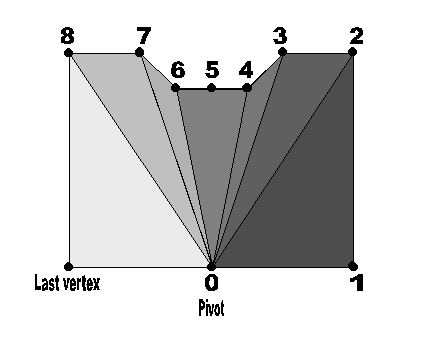
This image illustrates a fan, note that vertex number five in this illustration is not used by the fan - if it was the triangle in the center would have been split up in two.
Also note the
Drag the following vertices from the vertex list in this order: f, 0, 1, a, 9, 7, 6, 4, 5, f. If the order is incorrect, remove the vertices that are wrong and add the correct ones at the correct places.
Before defining the perimeter of the block, we create two more city blocks. First right click the block list and add texture attribute, index 0 and a block attribute (0xb0) with vertices 10, 3, 4, 6, d, b, a, 1, 2, 3, 10 . Then add a third block with texture index 1 and vertices e, 8, 9, a, b, d, 6, 7, 8, e.
Now we are ready to set up the perimeter of our city blocks. The perimeter define a simple geometric shape that is used to check collision with moving objects. The geometric shape is a clockwise polygon.
The perimeter is defined above the list of block attributes. There is a list of vertices, each vertex is associated with an index to a city block. This city block is the one that is connected to this city block at this vertex. This is used to make a seamless transition from one block to another. Without this, it is possible that rounding errors could cause a car to drop off the map when driving over the edge of one block and onto another. If more than one other city block connects to this block at a specific vertex, simply repeat that vertex in the list.
The block is referenced by it's index in the list of city blocks. If no other city block is attached to the vertex, enter a dash (-).
Add vertices by dragging a single vertex at a time from the vertex list into the neighbouring blocks list. Note that if the vertex is dropped on an existing row in the table, the dropped vertex will be inserted before the one it was dropped on.
Another way to add a neighbour is to right click the list and selecting Add.
For block zero, drag vertices from the vertex list in this order: 0, 1, a, a, 9, 8, 7, 6, 4, 5, f. If the order isn't correct, select the incorrect vertices, right click and select Remove and drag the vertices to their correct places. To set the index of the block at each vertex, double click the vertex and block column and enter the block index after the comma. For block zero, set the neighbours to -, 1, 1, 2, 2, 2, -, 1, 1, 2, -
For block one, add vertices 3, 4, 6, 6, d, c, b, a, a, 1, 2, 10 and assign neighbours -, 0, 0, 2, 2, 2, 2, 2, 0, 1, -, -.
For block two, add vertices e, 8, 9, a, a, b, c, d, 6, 6, 7, 8 and assign neighbours -, 0, 0, 0, 1, 1, 1, 1, 1, 0, 0, 0.
Now the terrain is ready to be saved, select Save from the file menu and enter a file name. Add the psdl file to an .ar file in the Midtown Madness II program directory. Make sure that the required tune/yourcity.cinfo identifies the new PSDL file. Start Midtown Madness II and select your city in the race menu.
Now, for creating more interesting terrains here are some pointers: